With SSRS 2008R2 you have the capability of adding maps to your reports
using spatial data. In this tip I’ll show you how to accomplish this.
If you have a table with addresses, zip codes, etc. we’ll need to find
the latitude and longitude of each address. You can accomplish this by
using a geocoding website. There are many out there but I usehttp://www.gpsvisualizer.com/geocoder/ because
it's fast and easy to copy and paste multiple addresses into their
input box, click "start geocoding" and within seconds it will output
latitude and longitude information.
Once you get the latitude and longitude information you can import it
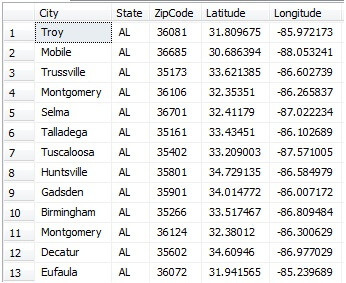
into your database. See below for an example of my table of Alabama
cities and zip codes with their appropriate coordinates.
Once you have your coordinates we will need to create a new column with a
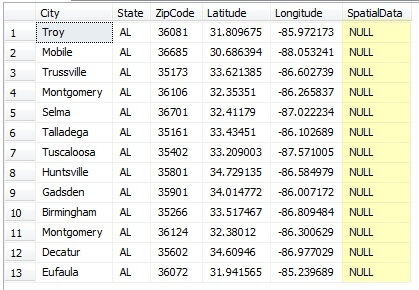
geography data type that we will add our spatial data into. The
following code will accomplish this.
We should now have a table that looks like below:
Inserting the data into the SpatialData column can be time consuming if
you have a lot of records. The best way I have figured out how to do
this is to use a basic UPDATE statement. Below is my script I have
created for my table for this example.
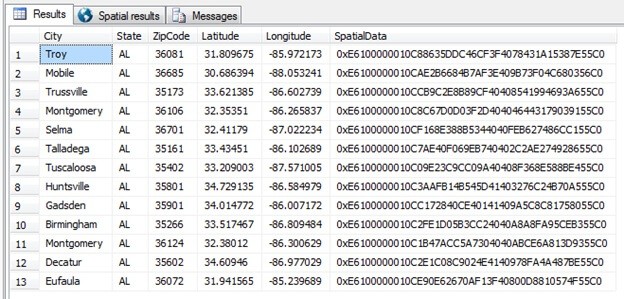
Once you update your table with the spatial data and run SELECT * FROM ZipCodes you should see the following output:
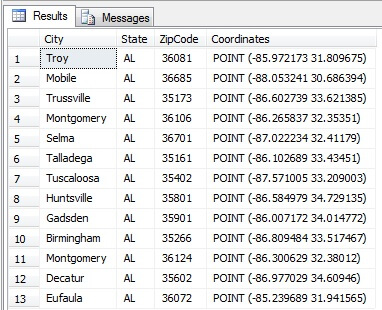
If you want to convert the SpatialData from binary back into the text you can use the CONVERT function:
Now that we have all of our data in our table it's time to create our map.
Open Business Intelligence Development Studio and create a new project
by going to File, New Project. Under Visual Studio installed templates
choose Report Server Project Wizard and choose a Name and Location for
your project.
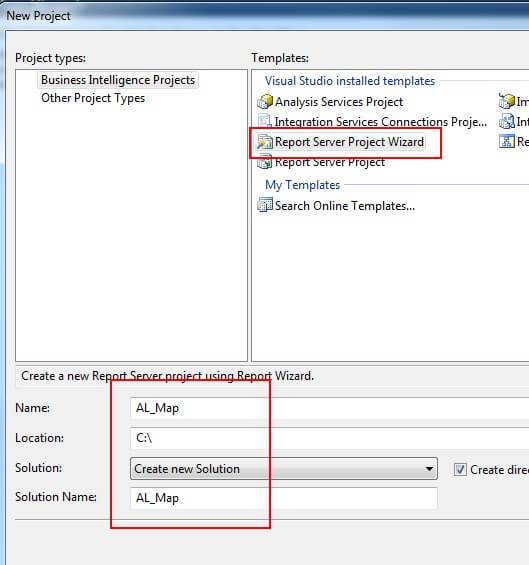
After clicking OK, the Report Wizard will appear. Click Next at the main
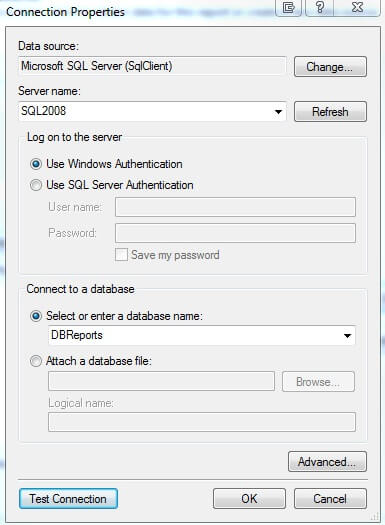
screen and then you’ll need to configure the data source. Since my
table was created on SQL2008, I will use this server and the database
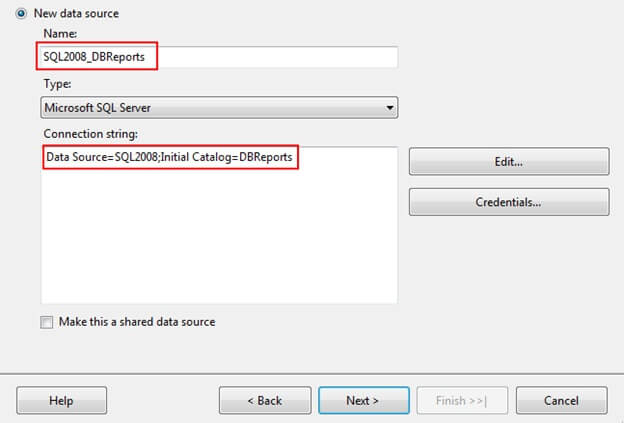
DBReports as my data source. To configure, choose Edit… and fill in the
connection properties and click Test Connection. Once the connection is
successful click OK. Rename the data source and click Next.
On the design query screen use the following query and click Next:
Select the Tabular Report Type and click Next, Next, Next.
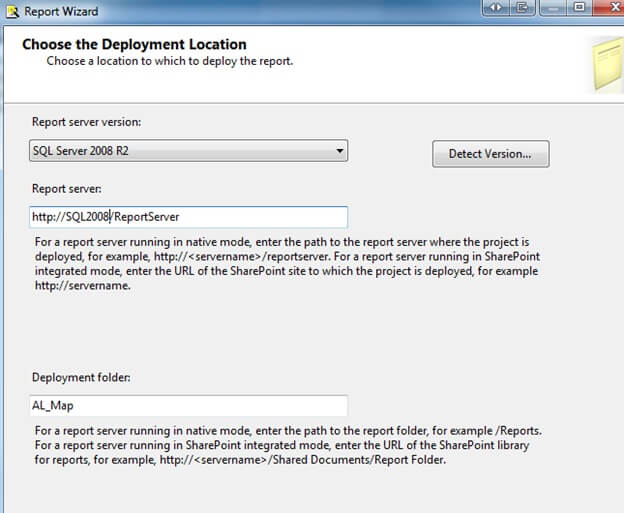
On the Deployment Location screen I'll leave the defaults and click Next.
Once we are at the Summary Screen, name the report and click Finish.
This should bring up the design screen. Once in the design screen go to
View, Toolbox to display the Toolbox.
In the toolbox, click the Map icon and click anywhere on the report design screen and the New Map Layer box should appear.
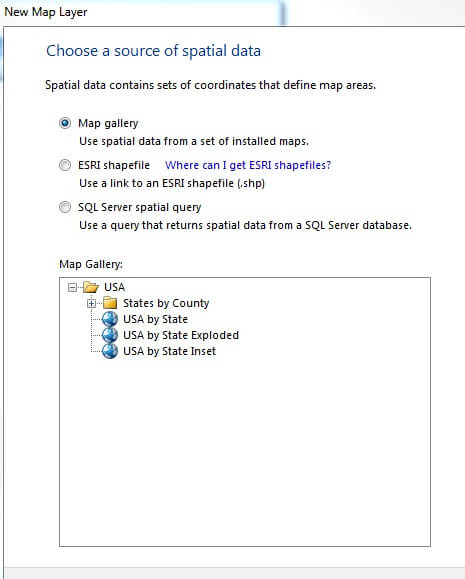
In the Map Layer Box there are a few options including Map gallery, ESRI
shapefile, or SQL Server spatial query. The first layer we’ll create
will be the basic map layer. I’ll choose Map gallery and drilldown
states by county and select Alabama.
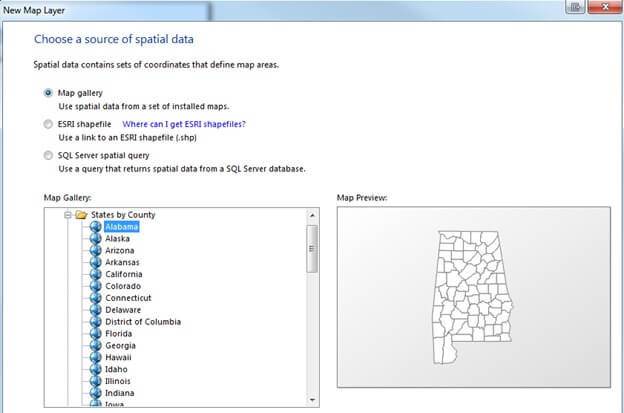
Click Next where it will display the state of Alabama and it's outlined
counties. Here you can add a Bing Map layer if needed and select a Map
resolution. Click Next.
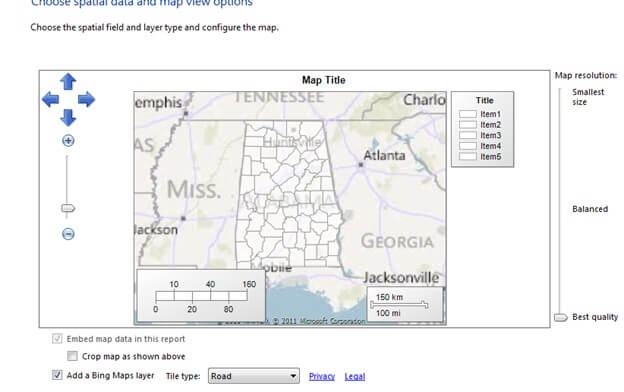
The next screen will display map visualizations. Here you can select
Basic Map, Color Analytical Map, or Bubble Map. For this example, I’ll
choose Basic Map.
Next screen will let you choose a theme, single color map, and give you
the option to display labels such as county names. Once you are finished
customizing your map click Finish.
Next I usually click on the map and scale it to the size I want for
display and change the Map Title at the top to an appropriate title.
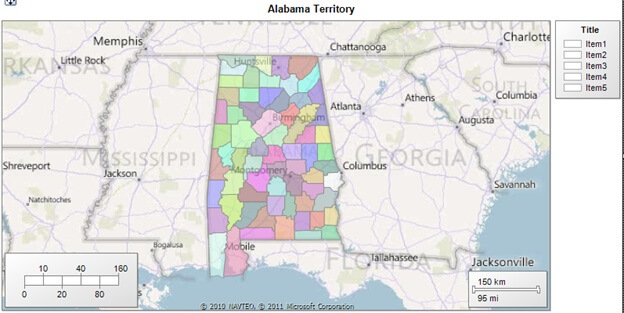
Once you have the map the way you want it you will need to add another
layer for the zip codes. To do this right click on the map and select
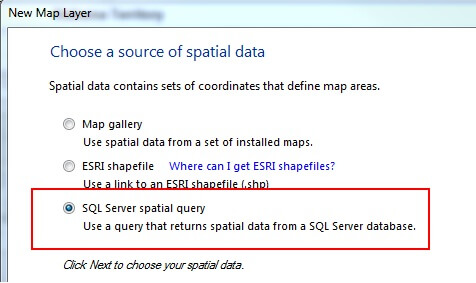
Add Layer. Our New Map Layer box should appear again. This time we’ll
choose SQL Server spatial query and click Next.
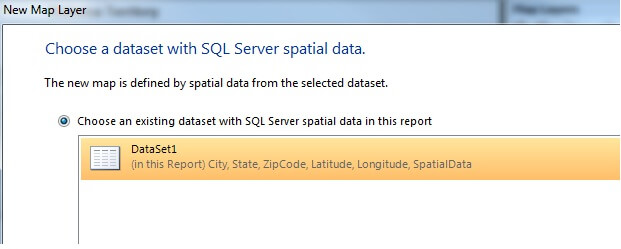
Choose the existing dataset and click Next
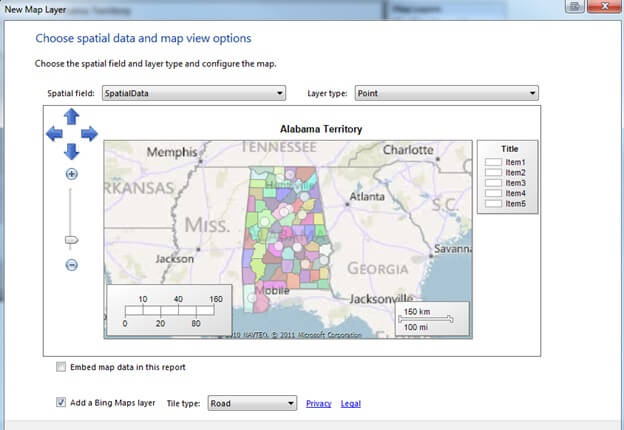
Here you will you see your pinpoints that were specified in the database
table. You can also change the layer type if needed. Click Next to
choose a map visualization.
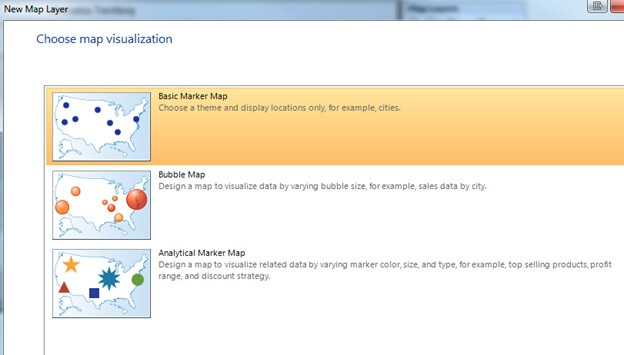
Once on the map visualization screen you can choose a Basic MarkerMap,
Bubble Map, or Analytical Map. For this example I’ll choose Basic Marker
Map because I just want to mark my zip codes.
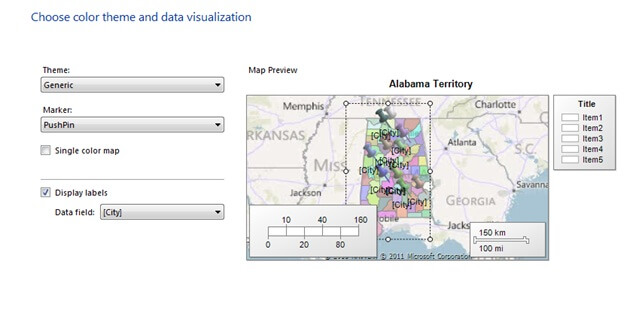
The next screen will allow you to choose a Theme, Marker, specify a
single/multicolor map and display labels based on your dataset. I’ll
choose Generic Theme, PushPin marker, and display labels based on City.
Click Finish.
Once back, you will be in design view, click Preview to preview the report.
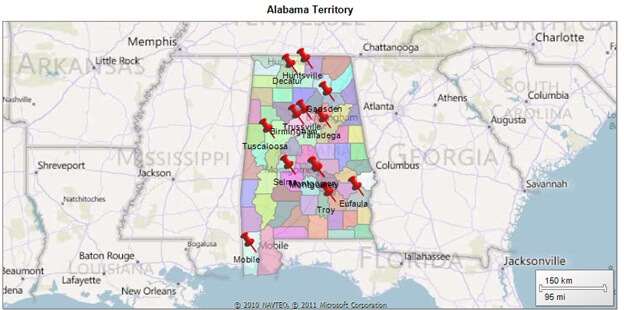
Once you’re map is the way you like it, right click the .rdl in Solution Explorer and Deploy.

No comments:
Post a Comment